Easy Steps for Video Conferencing Setup
Setting up a reliable video conference space helps teams communicate clearly and avoid common meeting frustrations. The following steps will guide you through building a space that works for both in-room and remote participants.
1) Define How the Room Will Be Used
Start by thinking about how the conference room setup for video conferencing will look like. Some spaces work best for quick huddles, while others support client meetings or training. This decision shapes every choice, from equipment to layout and overall meeting experience.
Next, connect the room type with the number of people expected to attend. Small booths may suit one or two users, while larger rooms need wider coverage. When capacity is clear, it becomes easier to select suitable audio, video, and display solutions.
Finally, think about how people will sit and interact during discussions. Seating in rows, around tables, or open areas changes visibility and sound pickup. Planning this early ensures everyone feels included, whether they join remotely or in person.
2) Map the Layout and Sightlines
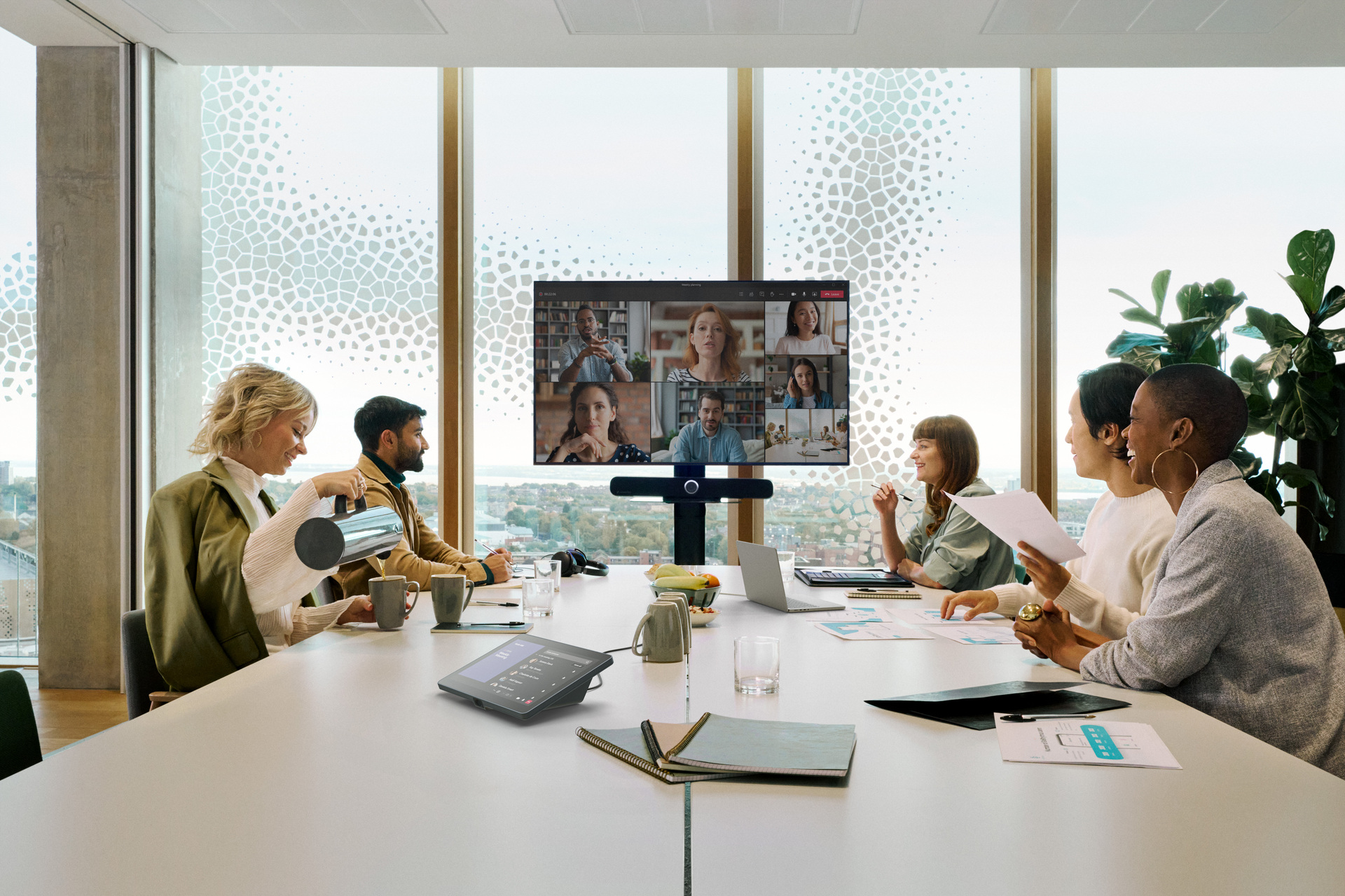
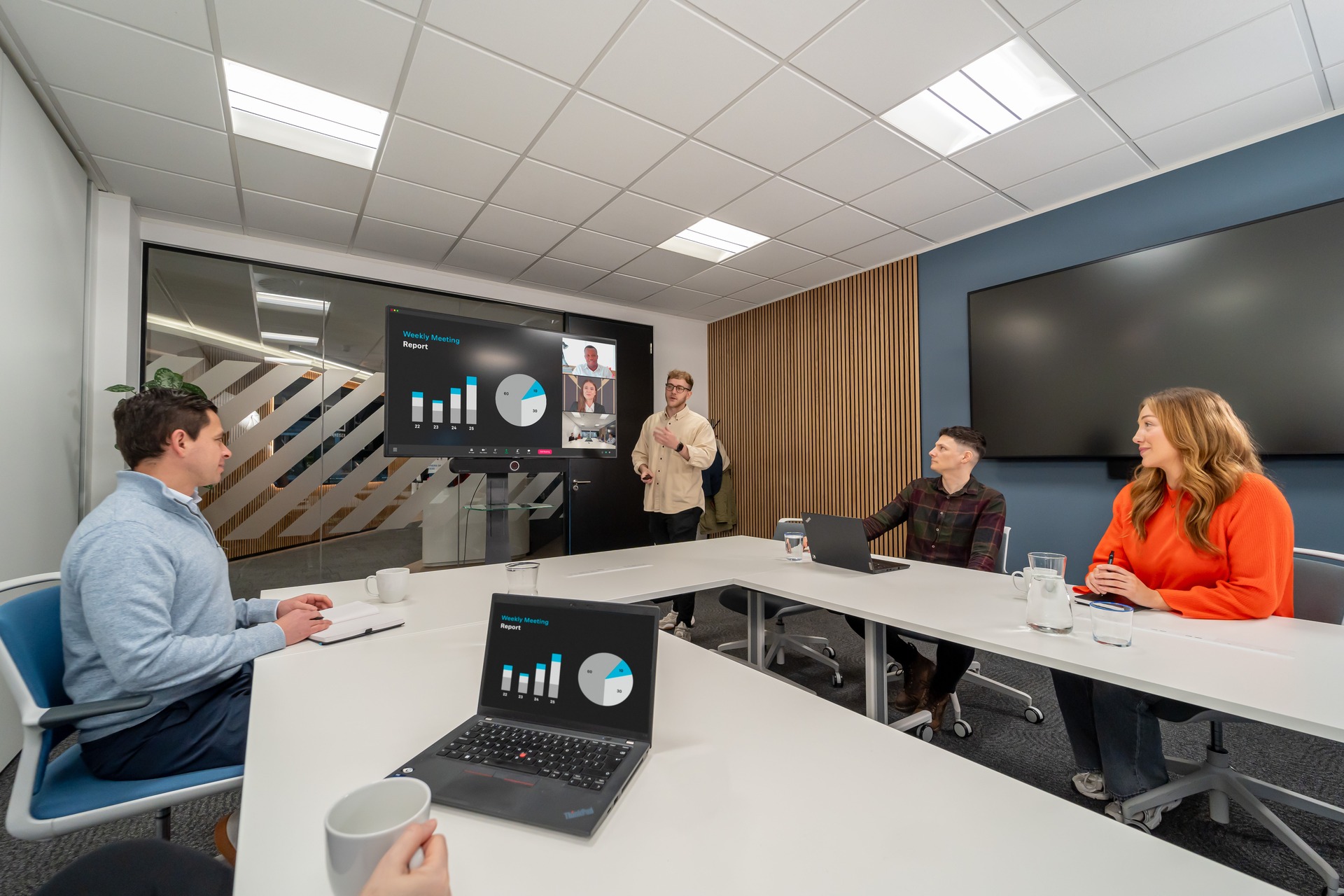
Place the main display where everyone can see remote faces and shared content clearly. This keeps attention steady and helps people stay involved during longer discussions. As a result, conversations feel more natural and less divided between in-room and remote participants.
Think carefully about seating before installing any cameras or microphones in the room. Arrange chairs so faces stay visible within the camera view during normal conversations. This improves engagement because remote attendees can read expressions and respond with more confidence.
Also consider how light affects visibility and overall video quality during calls. Avoid placing seats directly against bright windows or strong overhead light sources. Instead, position participants where lighting remains balanced, helping cameras capture faces clearly and consistently.
3) Choose Your Conferencing Platform
Choosing the right conferencing platform should start with how your teams already communicate daily. Some organisations rely on Microsoft Teams, while others prefer Zoom or Google Meet for meetings. When everyone uses one platform, joining calls becomes simple and confusion reduces across departments.
Once the platform is decided, create consistent rules for how meetings run across the company. Define default links, recording permissions, and waiting room behaviour to avoid surprises during calls. This consistency helps employees feel confident, since every meeting follows a familiar structure and flow.
Finally, ensure your audio and video devices work smoothly with the chosen platform across rooms. Test compatibility with laptops, room systems, and touch controllers before rolling out companywide. When technology connects without friction, meetings begin on time and conversations move without interruption.
4) Position Cameras and Displays Correctly
Camera placement shapes how people appear and feel during a meeting. Position the camera near eye level beside the main display for natural conversations. This makes remote participants feel directly engaged, instead of watching from an awkward angle.
In larger rooms, camera choice becomes even more important for clarity and engagement. Wide-angle lenses help capture everyone, while PTZ cameras adjust framing during active discussions. This keeps speakers visible and prevents remote attendees from feeling left out.
Framing should always keep faces central, clear, and easy to read throughout meetings. Avoid showing ceilings, empty walls, or large tables that distract from people. When visuals stay clean and balanced, conversations flow better and attention stays on speakers.
5) Configure Microphones and Speakers
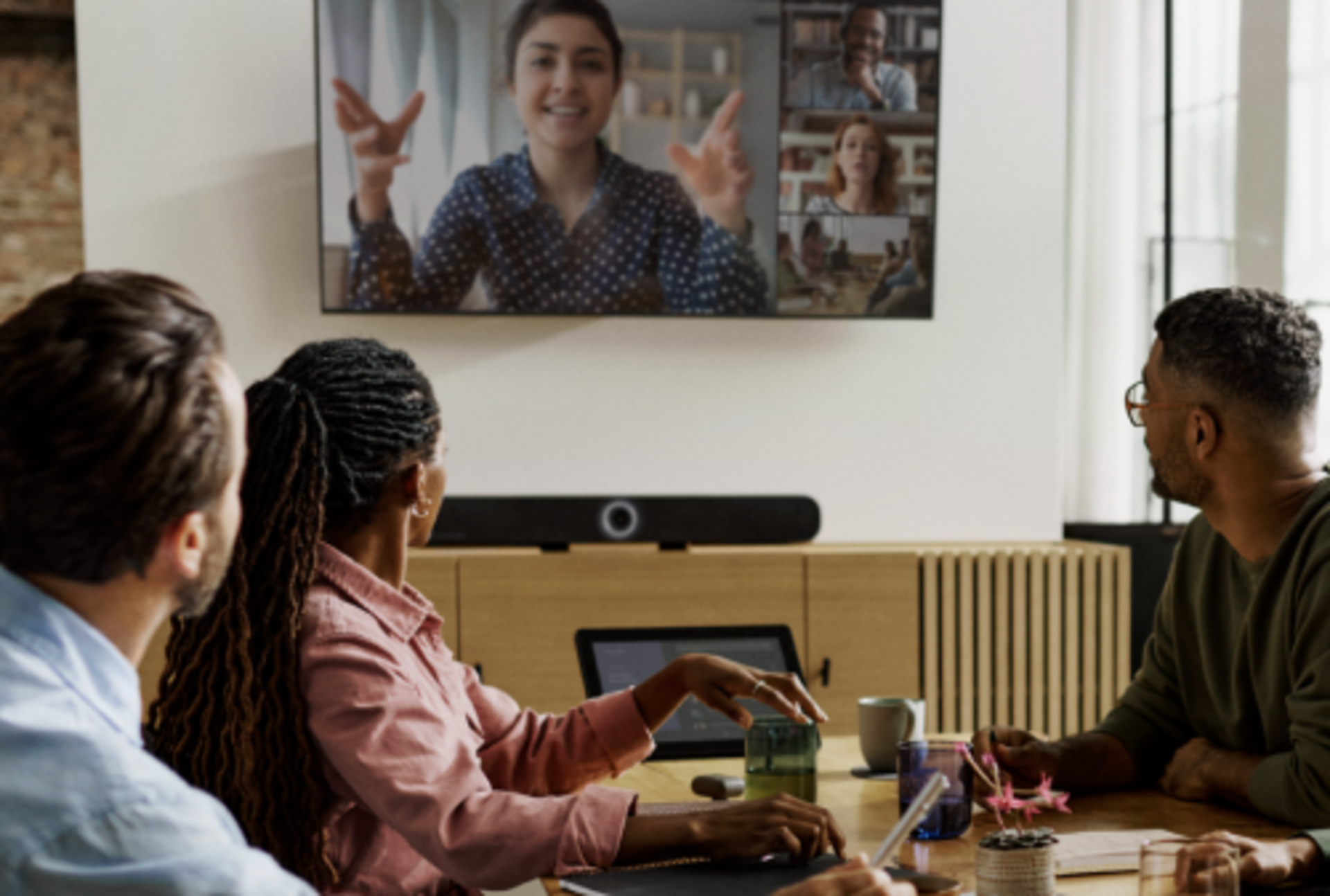
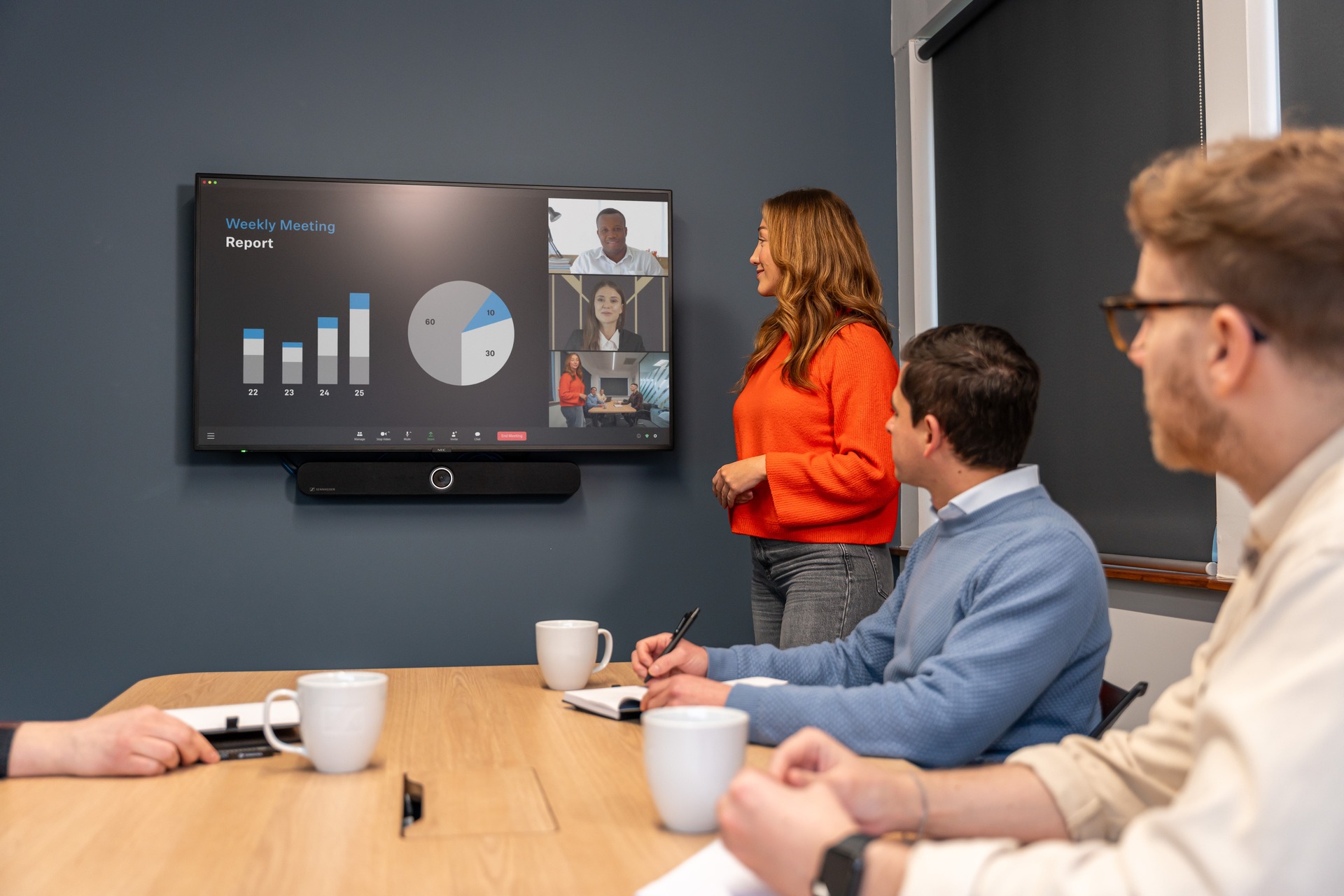
Getting the audio right starts with choosing solutions that match your room size and layout. In smaller spaces, devices like Sennheiser’s
TeamConnect Bar S (TC Bar S) bring microphones, speakers, and cameras together. This keeps the video conferencing room setup simple while delivering balanced sound for natural conversations across hybrid meetings.
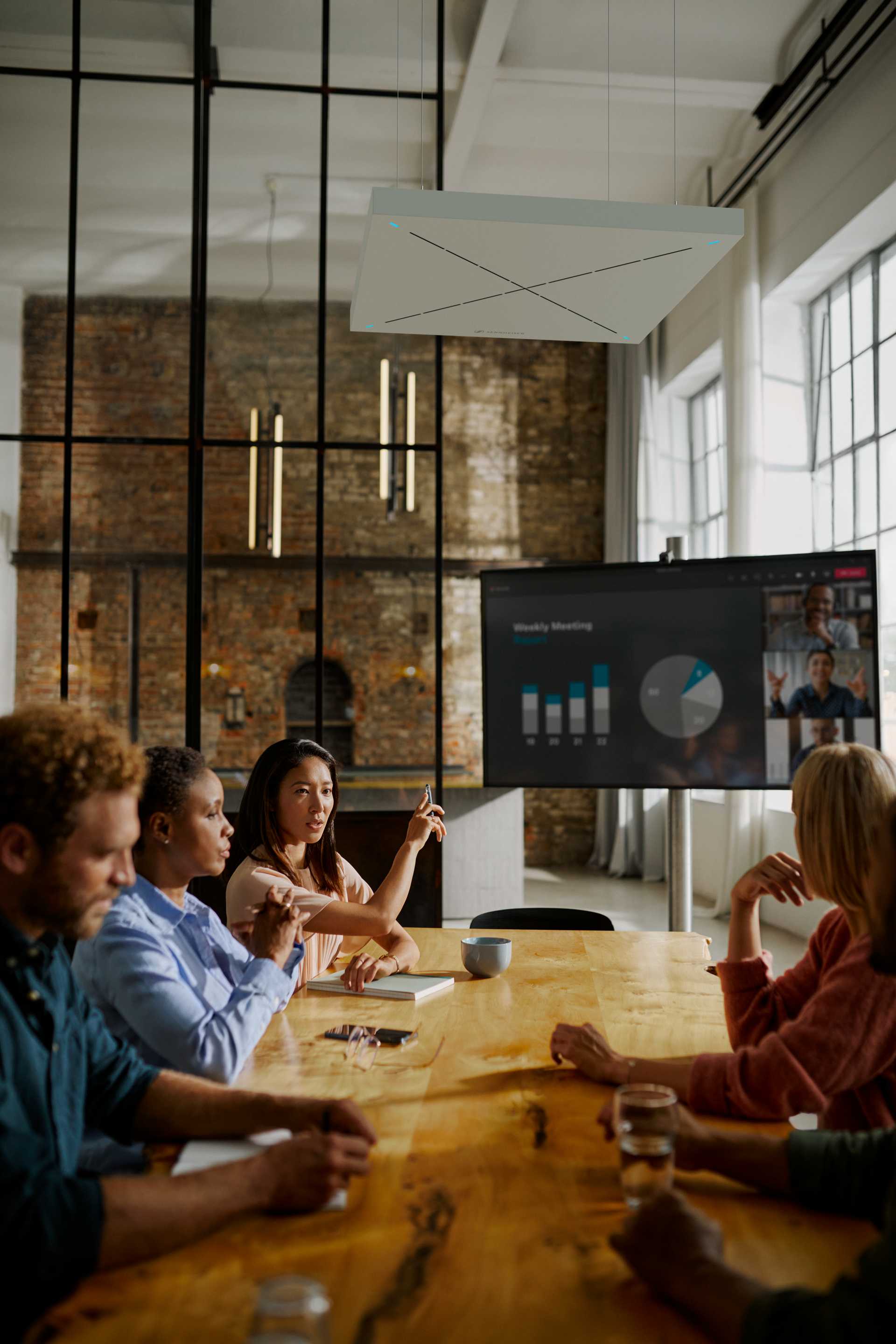
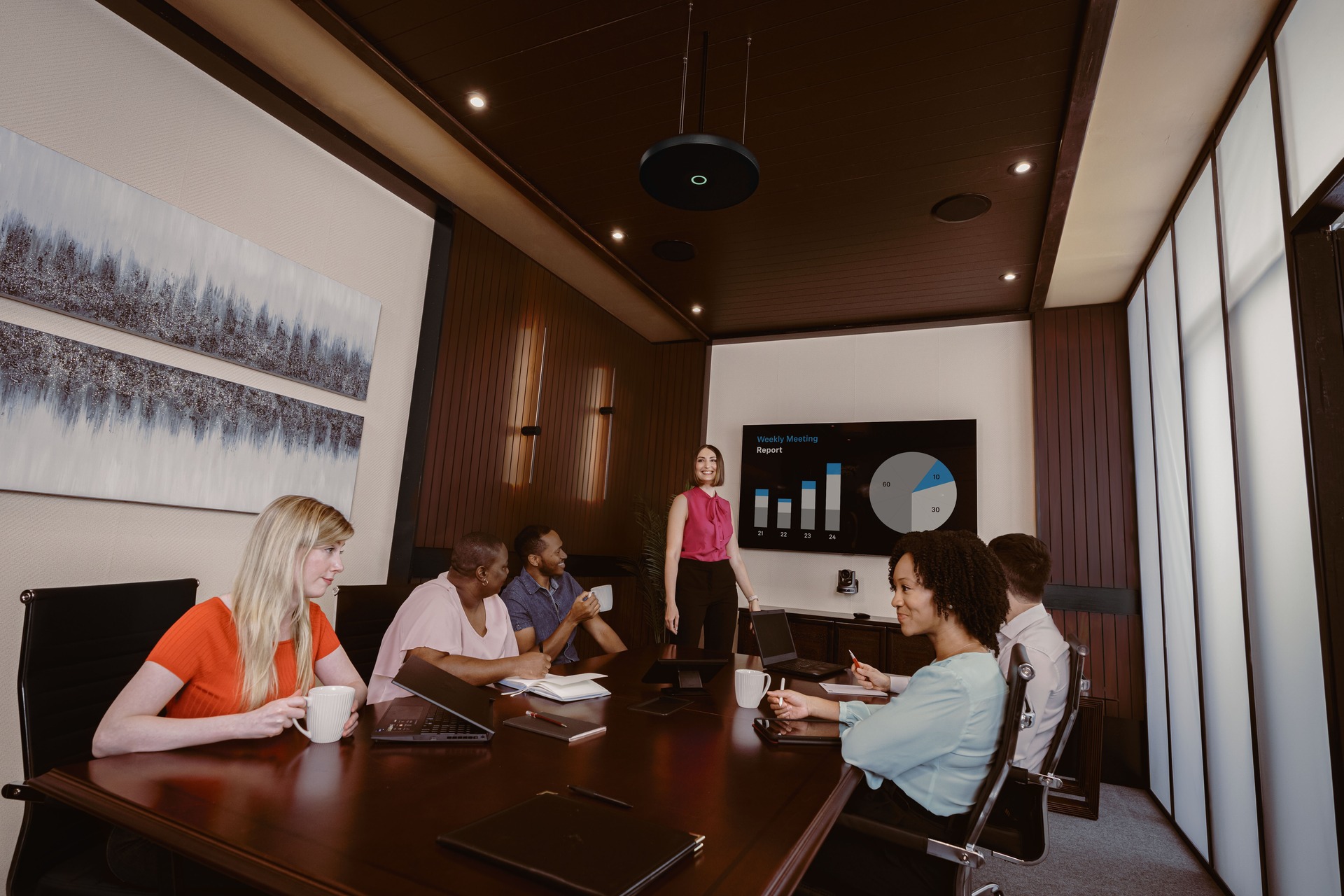
As rooms grow, sound must reach every participant without gaps or uneven pickup. Ceiling or distributed microphones such as
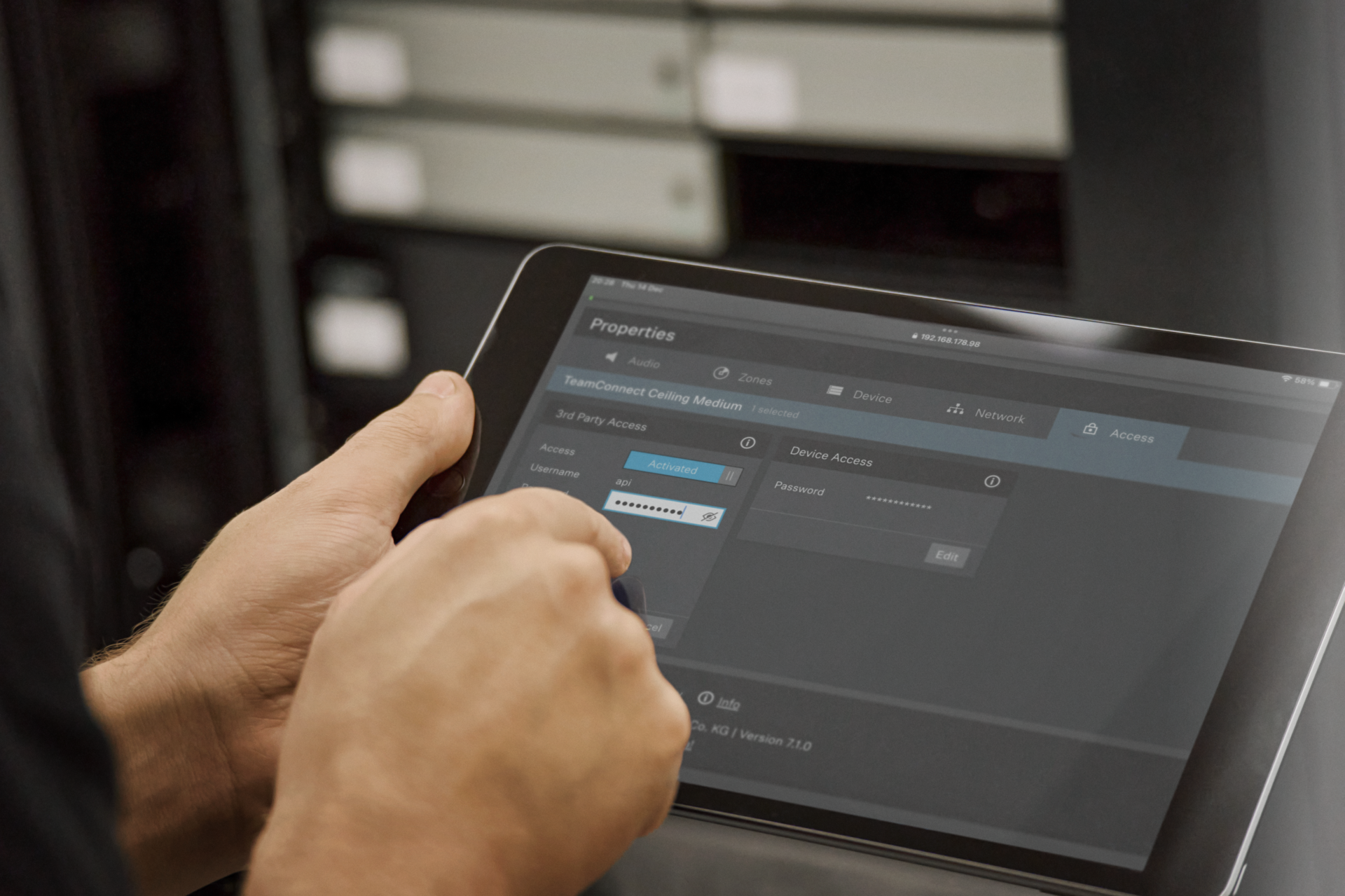
TeamConnect Ceiling Medium (TCC M) help capture voices from different seating positions. These systems use beamforming technology to track speakers automatically, so people can move and speak freely.
Speaker placement also shapes how remote participants feel inside the room. Evenly positioned loudspeakers make voices sound present instead of coming from one direction. For larger spaces,
TeamConnect Ceiling 2 (TCC 2) works well as it includes two integrated speakers and four microphones, supporting even coverage and clear speech.
6) Optimise Lighting and Background
Good lighting changes how people perceive your message, even before you start speaking. Soft, balanced light from the front or sides keeps faces clear and natural. This helps remote participants read expressions and stay engaged throughout the discussion.
Natural light works well, though it needs control to avoid glare and distraction. Blinds or curtains reduce brightness and create a consistent look during meetings. When lighting stays stable, participants can follow conversations without adjusting their screens constantly.
Your background plays a quiet role in how professional your meetings feel. A clean, neutral space keeps attention on the speaker and shared content. Adding subtle branding or simple colours creates identity without distracting remote participants.
7) Test, Fine-Tune, and Document
Run trial meetings with different participants to check audio levels and video framing. Listen carefully from both sides, since issues often appear only at the far end. This helps you catch echo, noise, or camera angles before real meetings begin.
Adjust your audio system so speech sounds clear, balanced, and comfortable for long discussions. Fine-tune gain, equalisation, and echo control while people speak from different seats. Over time, these small changes create a more natural conversation without strain or repetition.
Finally, document the process so anyone can walk in and start a meeting confidently. Create a simple guide that shows basic steps, common fixes, and key contacts. Keep it visible in the room, so users feel supported even without technical help.